🐚 Commands
Most CraftEngine commands start with /craftengine (alias /ce); a few are standalone player commands (e.g., /search-recipe, /search-usage). The enabled state, permission node, and command path of every command are recorded in plugins/CraftEngine/commands.yml and can be freely customized there (changes require a restart). Most commands support a --silent (shorthand -s) flag to execute silently without feedback messages.
Below, [ ] denotes a required argument and ( ) an optional one.
Basic Commands
reload
/ce reload (config/recipe/host/pack/all)
Defaults to config when no argument is given.
| Argument | Behavior |
|---|---|
config | Reload configuration, including workflow definitions, triggers, and steps. |
recipe | Reload configuration and recipes, including workflow definitions. |
host | Reload configuration and resource pack hosting settings, including resource-pack.packs and resource-pack.self-host. |
pack | Execute the currently loaded workflows whose trigger contains reload_pack. |
all | Reload configuration, recipes, hosting settings, and workflow definitions, then execute the reload_pack workflows. |
After editing resource-pack.workflows, use /ce reload or /ce reload config to apply the changes. /ce reload pack uses the loaded definitions; it does not reread the configuration. Pack generation, upload, and sending depend on the steps in the triggered workflows.
workflow
/ce workflow [name]
Execute a named workflow from resource-pack.workflows, such as /ce workflow default. Tab completion lists loaded workflows.
See Resource Pack Workflows for step fields and complete examples, and Resource Pack Hosting for pack definitions and delivery.
The workflow runs its configured steps in order, even if it has no trigger. A trigger can be a string or a list, for example trigger: reload_pack or trigger: [reload_pack].
Uploading alone does not resend packs: add a send_pack step to send updates to online players currently using the specified pack. The step's pack value must match an ID under resource-pack.packs.
pack
/pack [enable/disable/reset] [pack-id]
Save your own resource pack preference. pack-id refers to an entry under resource-pack.packs.
enable: explicitly enable the pack.disable: explicitly disable the pack.reset: remove the override and use the pack's configureddefaultvalue.
Player-only command. Requires ce.resourcepack.pack.<pack-id>; tab completion lists permitted packs. Administrators use feature pack-preference below to change another player's preferences.
For an online player, changing a configured pack's preference resends their selected packs. Preferences for IDs not configured on this server are still saved and cached, without resending packs. Offline players' preferences are saved for their next pack selection.
/pack enable default
/pack disable default
/pack reset default
pack preset
/pack preset [name]
Apply a preset from resource-pack.presets to yourself. Player-only command.
resource-pack:
  presets:
    high: [A, B, C]
    low: [A]
After /ce reload, use /pack preset high or /pack preset low. IDs refer to resource-pack.packs. Packs in the selected preset are enabled; other IDs configured in packs or any preset are disabled. Unrelated saved preferences are preserved. An empty list disables all managed packs.
Requires ce.resourcepack.preset.<name> to use the whole preset. Tab completion lists permitted presets. Administrators use feature pack-preset below to apply a preset to another player.
Preferences are saved together. Online players receive one update when their selection changes; offline players use the saved preferences on their next connection. Applying a preset copies its selections: later edits to the preset require applying it again.
clean-cache
/ce clean-cache [type]
Clears automatically allocated cache data. Available types: custom_model_data, custom_block_states, visual_block_states, font, all (default). Cannot be used while the plugin is reloading.
Item Commands
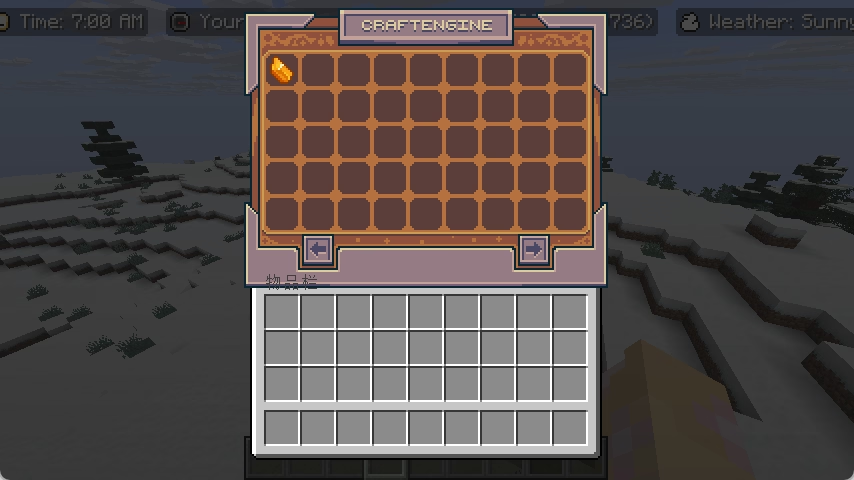
item browser
/ce item browser [player]
Opens the item browser for the specified player(s) (admin).
/ce
A player can simply type /ce to open the item browser for themselves (shortcut).
item get
/ce item get [item-id] (amount)
Get a specific quantity of an item (1–9999, default 1).
item give
/ce item give [player] [item-id] (amount)
Give a specific quantity of an item to player(s).
item clear
/ce item clear [player] [item-id] (max-count)
Clear matching CraftEngine items from a player's inventory. A max-count of 0 only counts without removing. Use the --match-tag flag to match by item tag.
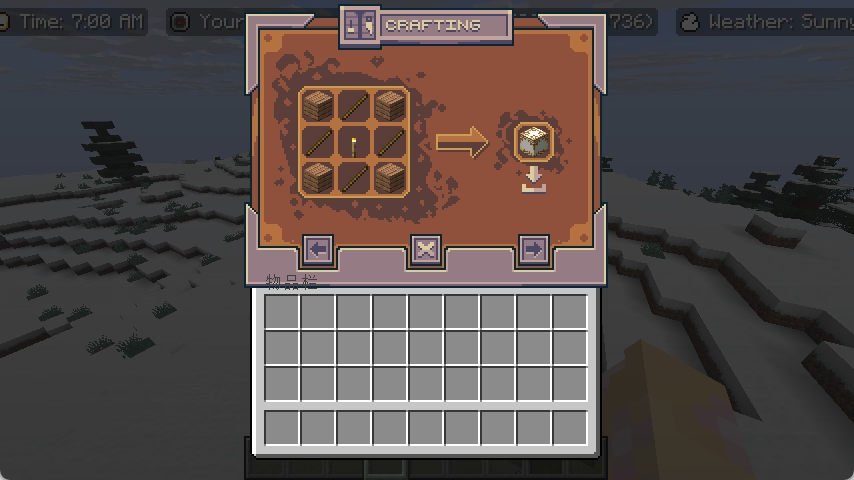
item search-recipe / search-usage
/ce item search-recipe [player] [item-id]
/ce item search-usage [player] [item-id]
Open the recipe/usage lookup interface for the specified player.
/search-recipe [item-id]
/search-usage [item-id]
A player queries the recipe/usage of their own item.
item component add
/ce item component add [component] [snbt]
Add or replace a data component on the main-hand item (player only, 1.20.5+).
Use a component ID such as minecraft:damage; tab completion lists component IDs registered on the server. The value must be valid SNBT for that component on your server version. Enter the component's value directly, without a (snbt) prefix or an enclosing component-ID map. Strings, numbers, lists, and compounds are accepted according to the component's format, including values containing spaces.
/ce item component add minecraft:damage 5
/ce item component add minecraft:custom_data {note:"Hello world",level:1}
Unknown components and invalid values produce an error without applying the change. Adding an existing component replaces its entire value; compound values are not merged.
To set an item model on 1.21.2+, use /ce item component add minecraft:item_model "minecraft:diamond_sword". Custom model data can be set through minecraft:custom_model_data using the SNBT format supported by your server version.
item component remove
/ce item component remove [component]
Remove the specified data component from the main-hand item, including a component supplied by the item type's defaults (player only, 1.20.5+).
/ce item component remove minecraft:custom_data
item component reset
/ce item component reset [component]
Restore the specified component to the item type's default value (player only, 1.20.5+). If the item type has no default for that component, it is removed. This resets only the named component, not the whole item or a previous command's value.
/ce item component reset minecraft:damage
All three component commands require a non-empty main hand and support component-ID tab completion. They replace the old item custom-model-data, item item-model, and item remove-component commands, which are no longer available.
Feature Commands
feature pack-preference
/ce feature pack-preference [player] [enable/disable/reset] [pack-id] (--silent)
Set the selected players' pack preferences. Requires ce.command.admin.pack_preference; individual pack permissions are not required. The target is required and accepts an online player name or a player selector, such as @a or @p.
feature pack-preset
/ce feature pack-preset [player] [preset] (--silent)
Apply a preset to the selected players. Requires ce.command.admin.pack_preset; individual preset permissions are not required. The target is required and accepts an online player name or a player selector, such as @a or @p.
feature send-pack
/ce feature send-pack [player]
Resend the selected resource packs to the specified player(s), using their saved preferences and each pack's default setting. Packs are sent in configured order; unavailable packs cannot be sent. This command does not generate or upload packs.
feature totem-animation
/ce feature totem-animation [player] [item-id] (sound) (volume) (pitch) (min-volume) (min-pitch)
Play the Totem of Undying animation for player(s). Use the --no-sound flag to mute.
feature toast
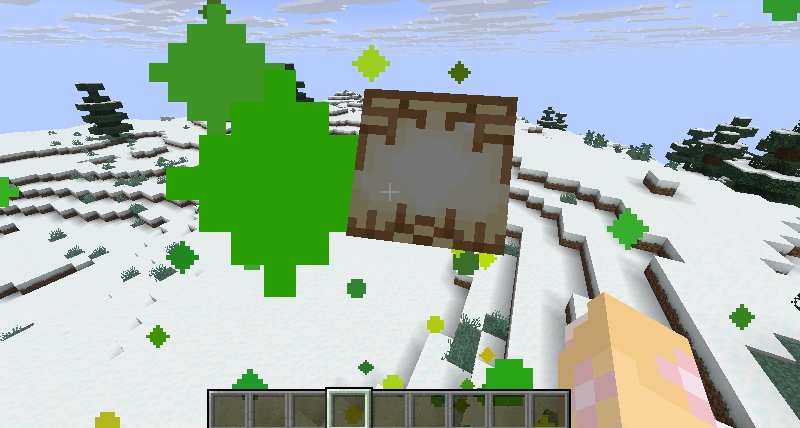
/ce feature toast [type] [item] [message]
Send a toast (advancement popup) to yourself (player only). type is the frame style: task, challenge, or goal; item is the icon (a namespaced item id); message is the displayed text and supports MiniMessage. Use the --silent (-s) flag to suppress the feedback message.
feature locale
/ce feature locale set [player] [locale]
Set the player's locale.
/ce feature locale unset [player]
Unset the player's locale.
feature toggle-entity-culling
/ce feature toggle-entity-culling [player] (state)
Toggle entity culling for a player. state is true/false; omit to toggle.
feature entity-culling-distance-scale
/ce feature entity-culling-distance-scale set [player] [scale]
Set the entity culling distance scale for a player (0.125–8).
feature display-entity-view-distance-scale
/ce feature display-entity-view-distance-scale set [player] [scale]
Set the display entity view distance scale for a player (0.125–8).
feature place-feature
/ce feature place-feature [feature] (location)
Place a vanilla configured feature at the given location (player only). Defaults to the player's position when omitted.
feature migrate-world-storage
/ce feature migrate-world-storage [world] [direction] [type]
Migrate a world's chunk storage format. type is mca, pdc, or linear, and cannot be the storage type currently enabled in the config. direction is from or to:
frommigrates from the specified type to the currently enabled storage type — switch the target storage type in the config first, then migrate from the old type.tomigrates from the currently enabled type to the specified type, and reminds you to update the config and restart when it finishes.
Paper only, and only one migration can run at a time.
feature clear-world-storage
/ce feature clear-world-storage [world] [type]
Delete a world's stored chunk data of the given storage type. type is mca, pdc, or linear, and cannot be the storage type currently enabled in the config. This is used to clean up leftover data after switching storage types (e.g., following migrate-world-storage). Paper only, and only one cleanup task can run at a time.
feature world-settings
/ce feature world-settings [world] [setting] (value)
Get or set a world option. value is true/false/default; omit to query the current value.
Resource Commands
resource list
/ce resource list
List all packs under the resources folder (with enabled/disabled state).

resource enable
/ce resource enable [pack]
Enable the specified resource pack (writes to its pack.yml).
resource disable
/ce resource disable [pack]
Disable the specified resource pack.
resource create
/ce resource create [pack] (namespace) (author) (description)
Create a new resource pack skeleton. Uses the pack name as the namespace if none is specified.
resource save-default
/ce resource save-default [path]
Regenerate built-in default resources. Available paths: /default_assets, /default_feature_populator, /default_templates, /internal, /legacy_armor, /remove_shulker_head.
resource search
/ce resource search [type] [resource]
Find which config file defines a resource. type is the resource's config type (e.g., craftengine:item, craftengine:block) — tab completion lists all searchable types and, after a type is chosen, its registered ids. Prints the file path relative to the resources folder; click it to copy the absolute path to the clipboard.
Debug Commands
debug pack-states
/ce debug pack-states (player)
Display the cached resource pack preferences for an online player. Omit player to inspect yourself; the console must specify a player.
| State | Color | Meaning |
|---|---|---|
enabled | Green | Explicitly enabled by the player's saved preference. |
disabled | Red | Explicitly disabled by the player's saved preference. |
unset | Yellow | No saved override; the pack's configured default applies. |
The output includes all saved pack IDs, even those not configured on this server. Such pack names have a strikethrough, for example old_pack, while their saved state remains visible. Configured packs without an override are also listed. If preferences have not loaded yet, the command reports that instead.
These are preference states, not confirmation that the client downloaded or loaded a pack.
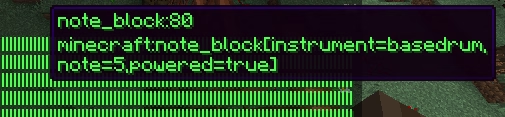
debug visual-state-usage
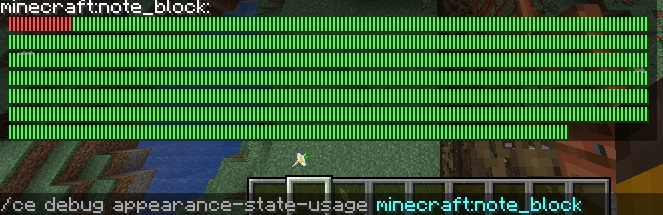
/ce debug visual-state-usage [block-type]
Aliases: /ce debug appearance-state-usage, /ce debug clientside-state-usage
Retrieves the client-side (visual) block state usage for a given block type. Red sections indicate manually assigned states, yellow sections represent automatically assigned states, and green sections denote available states. Hover over a section to inspect the specific state.

manual assigned states

automatically assigned states
free state
debug auto-state-usage
/ce debug auto-state-usage [state-group]
Retrieves the allocation usage of a given auto state group. Colors mean the same as in visual-state-usage.
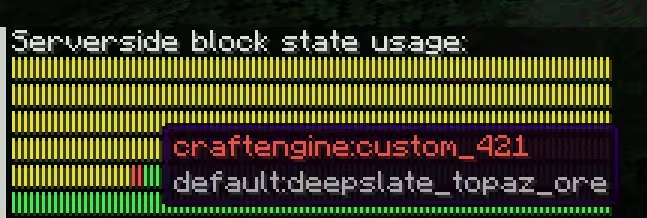
debug real-state-usage
/ce debug real-state-usage
Alias: /ce debug serverside-state-usage
Inspects the usage of server-side real block states. Takes no arguments.
manual assigned states

automatically assigned states

free state
debug item-data
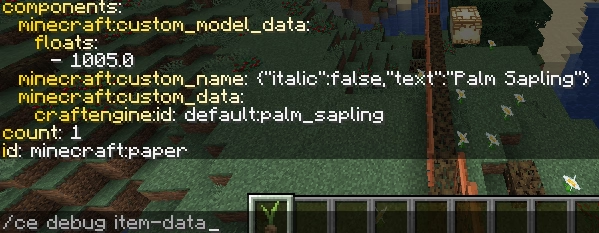
/ce debug item-data
Alias: /ce item debug
Inspect the item data (such as NBT or components) of the held item. Use the --client-side flag to view the data after client-side conversion (including decryption).
debug item-component
/ce debug item-component [component] [json/snbt]
Serializes the specified data component of the held item as JSON or SNBT (player only, 1.20.5+). The result includes the (json) or (snbt) prefix required by CraftEngine; click the result to copy the complete string to your clipboard.
For example, /ce debug item-component minecraft:custom_name snbt returns a value ready to paste into an exact recipe predicate or an item's direct component configuration.
debug get-block-internal-id
/ce debug get-block-internal-id [block-state]
Retrieves the server-side real block namespace ID corresponding to a custom block state, commonly used in tools like WorldEdit and data packs.


Q: Why must we use the real block namespace ID (e.g., craftengine:custom_666) in native Minecraft data packs, instead of a name like default:palm_log?
A: Because the configuration file is only loaded after the server starts, while datapacks are loaded much earlier during server initialization. The server cannot recognize a non-existent block ID at this stage. To ensure that pre-registered custom blocks can adapt to the latest user configurations, CraftEngine employs a container-style dynamic binding solution.
debug get-block-state-registry-id
/ce debug get-block-state-registry-id [block-state]
Obtains the registry ID of the corresponding block state (not commonly used).

debug target-block
/ce debug target-block [--this]
Inspect the data of the block the cursor points at (or use the --this flag to use the player's current position). Includes the real block state, visual state, name, behaviors, block entity info, and any custom tags.

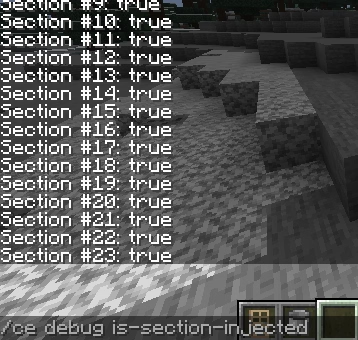
debug is-section-injected
/ce debug is-section-injected
Checks whether each section of the player's current chunk has been injected. A return value of false indicates an abnormal condition that requires investigation.
debug setblock
/ce debug setblock [location] [block-state]
Place a CraftEngine block state at the specified location.
debug spawn-furniture
/ce debug spawn-furniture [location] [furniture-id] (variant)
Place furniture at the specified location, optionally with a variant.
debug clear-cooldown
/ce debug clear-cooldown [player]
Clear the player's item cooldowns.
debug is-chunk-persistent-loaded
/ce debug is-chunk-persistent-loaded
Check whether the player's current chunk is force-loaded (not available on Folia).
debug entity-id
/ce debug entity-id [world] [entityId]
Retrieve entity data by entity ID.
debug custom-model-data
/ce debug custom-model-data (item-id)
Retrieve the custom model data value of an item. Uses the held item when the id is omitted.
debug item-model
/ce debug item-model (item-id)
Retrieve the item model value of an item (1.21.2+). Uses the held item when the id is omitted.
debug image
/ce debug image [image-id] (row) (column)
Retrieve how the specified image is referenced in a font (MiniMessage, MineDown, and RAW formats).

debug furniture
/ce debug furniture
Toggle the player's furniture debug mode, used to visualize furniture bounds and composition (player only).
debug optimize-furniture-structure
/ce debug optimize-furniture-structure [world] [file] (y-offset)
Optimize furniture within a structure file: removes collision entities and adjusts furniture Y coordinates by the given offset.